Quiet Mind Creative
What Makes a Mac App Feel Like a Mac App?
Keyboard navigation, useful previews, familiar controls, and background behavior: the decisions behind HyperPaste, our native macOS clipboard manager, that help it feel at home on a Mac.
You’re halfway through writing an email when you need a link you copied earlier. Since then, you’ve copied something else.
This is the sort of interruption we built HyperPaste to handle. It’s our clipboard manager for macOS, designed around finding and reusing things you’ve already copied without turning the search into another task.
It’s also a good example of what we mean when we say an app should feel native. A screenshot can show you the typography, spacing, and window styling. The details we care more about are the ones it can’t show: whether the keyboard does what you expect, whether the app fits into the work you’re already doing, and whether you have to stop and figure it out.
The keyboard path has to go all the way through
In HyperPaste, you can press your activation shortcut, start typing to narrow the history, move to a result with the arrow keys, and press Return to select it. You don’t need to reach for the mouse halfway through.
The whole sequence matters. A shortcut that opens a window is only the beginning. If the next step means clicking into a search field, or the results can’t be navigated from the keyboard, the interaction stops being keyboard-first right when you need it to continue.
That makes focus a design concern as much as an implementation detail. The interface has to make clear where typing will go and which result an action will affect, and macOS already has familiar signals for both, including focus rings and selection highlights.
For a clipboard manager, we judge that interaction against the task happening around it. You were writing the email and needed the link, so the utility should get you back to the email instead of asking you to settle in.
Show people what they copied
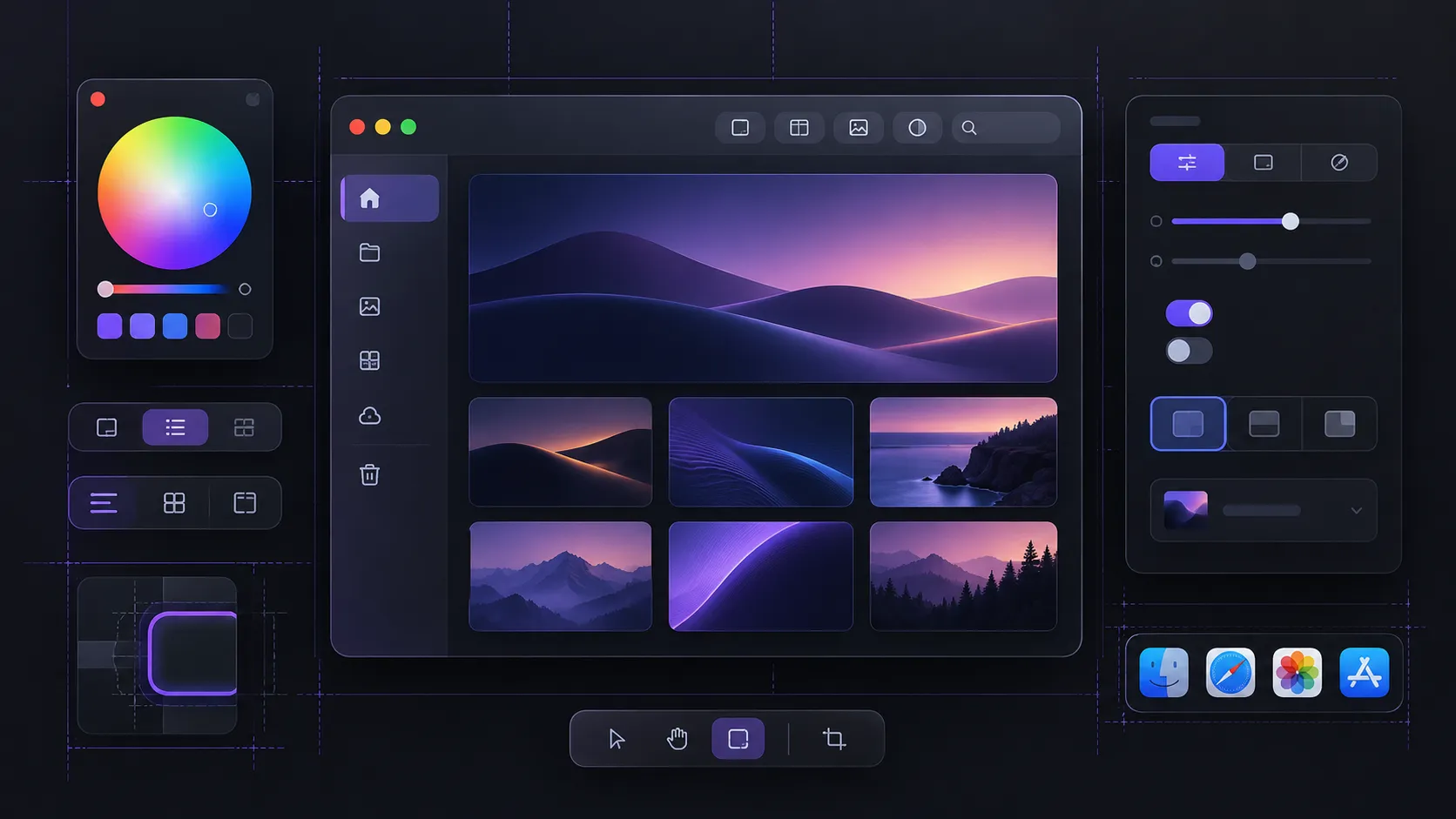
Clipboard history holds more than paragraphs of text. HyperPaste includes filters for different kinds of content and previews that help identify them, including color swatches and file icons.
A color is a good example. Its hexadecimal value identifies it precisely, but a swatch tells you whether it’s the color you remember copying. An image preview works the same way, letting you recognize an image instead of inferring it from a label. These details help when a search returns several plausible results and you need to pick the right one. A preview earns its space when it helps someone decide, not when it just makes the app look more elaborate.
This is also why consistency doesn’t mean displaying everything identically. Text, colors, images, and files belong in the same interface, but the useful information is different for each, so we don’t squeeze them into the same presentation.
Menu bar, Settings, and the decisions macOS already made
HyperPaste lives in the menu bar and has a native Settings window, including a control for choosing the activation shortcut.
We saw no benefit in inventing a new settings experience for a clipboard utility. The person using it has already learned a lot from the other apps on their Mac.
Apple’s Human Interface Guidelines make the same point about keyboard shortcuts: standard commands should stay consistent so people can carry what they know between apps. Command-comma, for example, is the standard shortcut for opening an app’s settings.
That familiarity is design material, and so are the Mac’s conventions for menus, windows, and switching between apps.
None of this means every Mac app has to look identical. There’s room for distinctive typography, useful custom views, and some personality. But making a familiar action behave unexpectedly is usually an expensive place to put your originality, because the user pays for it by learning the action all over again.
Background behavior is part of the product
HyperPaste is built to stay running in the background all day, so the hours when its window is closed are part of the product too.
We think a utility like this has two responsibilities: respond when called, and stay out of the way when it isn’t. Judging only the visible interaction misses half of that.
Part of staying out of the way is deciding what gets remembered. HyperPaste keeps history on the Mac, lets people exclude apps, and respects apps that mark copied content as private. We made those choices deliberately, and using native controls doesn’t hand you any of them for free.
The same goes for the rest of the experience. HyperPaste uses SwiftUI and AppKit, but naming the frameworks says nothing about whether the app is good to use. The implementation still has to deliver the behavior.
With HyperPaste, the test is very ordinary. You needed something you copied earlier, and you found it, recognized it, and got back to work. The app can look good while it does that, as long as it doesn’t make a production out of it.
How we can help
Swift and SwiftUI apps that behave like they belong on the device, shipped through the App Store.